Did you know that attackers try billions of credential combinations each day, and many breaches trace back to weak login data?
You can cut your risk with a few smart steps. This guide shows how to create strong credentials without slowing you down. It explains why attackers favor simple entries and how mixing length and character types raises your defense.
You’ll also learn how reputable generator tools make random strings on your device, how managers store and autofill across devices with zero-knowledge encryption, and how antivirus helps block keyloggers that steal what you type.
By the end, you’ll know when to change a password, how to avoid reuse across critical services, and how to add multifactor layers to protect each account and all your online accounts.
Key Takeaways
- Weak login info invites attacks; adding length and variety boosts security.
- Use a reputable generator tool to create random entries locally on your device.
- Secure managers sync and autofill with zero-knowledge encryption for ease and safety.
- Antivirus and multifactor methods stop malware and reduce the chance of compromise.
- Replace reused or old credentials quickly and monitor for breached info.
Why strong passwords matter right now
Modern attacks move at machine speed, turning simple credentials into easy targets. You face automated brute force tools that can test millions of guesses in a short time, so short or common entries fail fast.
Today’s threats: brute force, credential stuffing, and malware
Brute force and credential stuffing let hackers reuse stolen pairs from a single data breach to hit many services. Phishing and social engineering add pressure by tricking you to give away info by email, SMS, or phone.
Malware and keyloggers can record what you type or capture saved logins on an infected device. That means even a long password can be taken if your device is compromised.
“Data from large breaches often ends up in lists attackers trade, so reuse is a direct path to account takeover.”
What gets exposed and how to limit damage
When a breach leaks email and password pairs, attackers verify them on high-value accounts like banking and email. Using a password generator to create unique entries per site reduces the chance that one leak breaks many accounts.
What makes a strong password
Length and unpredictability are the core defenses you control right now. Major providers recommend long, mixed entries to resist automated attacks.
Guidance: Microsoft suggests at least 12–14 characters with a mix of uppercase letters, lowercase letters, numbers, and symbols. LastPass pushes 15 or more, while Avast recommends 16 for higher-value accounts.
Length and complexity
Aim for a password that is at least 12–16 characters long. Many sites allow longer strings; adding extra characters often improves security more than adding obscure symbols.
- Use a combination of uppercase and lowercase letters, numbers, and symbols to expand the search space attackers must test.
- Avoid dictionary words, names, or obvious patterns like keyboard sequences or repeated digits.
- Prefer a unique password for each account so one leak cannot unlock multiple services.
Practical tips
Choose passphrases or randomized strings over anything tied to your personal life. Skip predictable human patterns like capitalizing the first letter and appending “!1”.
“Uniqueness and length work together: a longer, unique password beats short, complex tweaks every time.”
How to create strong passwords step by step
A reliable password generator that runs on your device is the fastest way to get unique login data. It removes human patterns and gives you high-entropy results without risking online exposure.
Use a random password generator to create strong, complex passwords
Pick a reputable random password generator or an in-app generator inside a manager. Look for tools that render the string locally and never send your info over the internet.
Set parameters: length, letters, numbers, and symbols
Choose at least 12–16 characters and enable uppercase and lowercase letters, numbers, and symbols. If a site limits characters, adjust the settings so entropy stays high.
Test strength and avoid human patterns
Use a trusted strength meter (like zxcvbn) to evaluate results. Regenerate until the meter shows a robust score and you see diverse character classes rather than repeated segments.
Create memorable passphrases without common words or personal info
If you need recallable text, build a unique passphrase that avoids common words and personal data. Then add variety with mixed case, digits, and symbols to make it resistant to guessing.
- Tip: Let the manager autofill and save immediately to avoid copy-paste errors.
- Prefer generators that create passwords locally and store nothing externally.
- Regenerate any random passwords that show repeated patterns or lookalike characters.
Manage and store your passwords securely
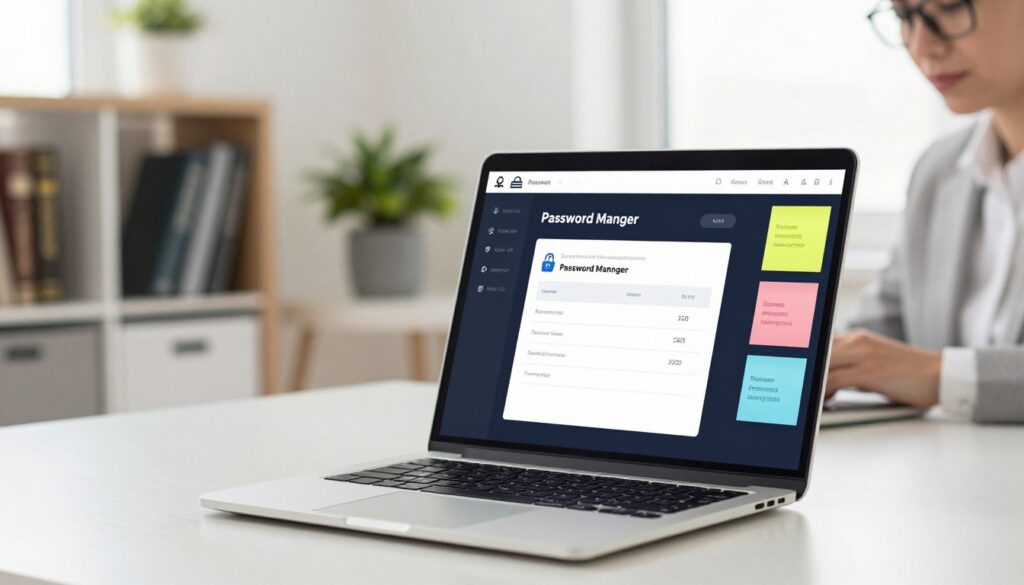
Treat your manager as the central hub that protects and syncs all your account logins.
Choose a password manager that encrypts your vault locally with a zero-knowledge design so only you can decrypt your information. Modern password managers sync across devices and browsers, and they autofill logins so you don’t copy secrets by hand.
Protect the vault and your accounts
Enable multifactor authentication on the manager app and on high-value accounts. A second factor — a one-time code or biometric check — blocks access even if a password is exposed.
Replace weak or reused items fast
Use the manager’s security dashboard to find weak, old, or reused entries. Regenerate each risky entry with a built-in generator and save the new login immediately so it’s available on your phone and desktop.
- Turn on sync and autofill for seamless access across devices.
- Watch breach monitoring alerts and rotate any impacted credentials quickly.
- Avoid relying only on a browser when a dedicated manager and app offer stronger controls.
- Use secure sharing and export encrypted backups per your provider’s guidance.
Stay ahead of breaches and phishing attempts
Stay proactive: timely alerts and careful checks give you the edge when your info appears in leaks.
Monitor for data breach alerts and dark web exposure
Turn on breach monitoring tied to your email so you get notified if your accounts or credentials show up in exposed databases.
When an alert arrives, change affected passwords immediately and rotate any reused entries across other services.
Recognize phishing and social engineering
Treat unexpected requests for info with caution. No bank or legitimate service will ask you to confirm a password by email or phone.
- Use bookmarks or type URLs manually to avoid fake links.
- Inspect the address bar and certificate before you enter credentials.
- Be wary of SMS codes you didn’t request and pressure-filled calls; verify independently.
- Keep managers updated and review recent logins for unfamiliar activity.
- Update devices and run reputable antivirus to block malware that steals credentials.
“If something feels off, stop and verify from the official site before you log in.”
Conclusion
Make replacing weak entries your first task, then keep a steady routine to protect every account.
strong, good results come from simple habits: use at least 12–16 characters with uppercase and lowercase letters, numbers, and symbols. Avoid common words and never reuse the same password across sites.
Use a local password generator and store each random password in a trusted manager right away. Turn on app-based authentication for email, finance, and cloud storage to block hackers even if a credential leaks.
Schedule quarterly checks, rotate exposed entries after alerts, and let managers autofill in your app and browser to keep secure passwords at scale.
FAQ
Why do I need strong passwords right now?
You face active threats like brute-force attacks, credential stuffing, and malware that target reused or weak credentials. A well-made passphrase or randomly generated key reduces the chance attackers can access your accounts after a breach.
What information is exposed in a data breach and how do attackers reuse it?
Breaches often leak email addresses, usernames, and login credentials. Cybercriminals use that data in automated attacks across multiple sites, so a leaked login can let them access other accounts if you reuse credentials.
How long should a secure password be?
Aim for 12–16 characters or more. Longer values increase resistance to guessing and brute-force tools, especially when you include a mix of uppercase, lowercase, numbers, and symbols.
What should I avoid when creating passphrases?
Don’t use dictionary words, names, common phrases, or predictable patterns like “12345” or keyboard sequences. Avoid personal info such as birthdays or pet names that attackers can find or guess.
Is a random password generator better than making one myself?
Yes. A reputable generator creates truly random strings that don’t follow human patterns, which makes them far harder to crack. Use built-in generators in password managers or trusted tools from companies like Bitwarden or 1Password.
What parameters should I set in a generator?
Configure length (at least 12–16 characters), include uppercase and lowercase letters, numbers, and symbols. Avoid settings that force pronounceable words unless you need a memorable passphrase.
How can I make a passphrase memorable without using common words?
Combine unrelated words with deliberate misspellings, insert numbers and symbols, or use a short sentence with uncommon nouns and verbs. Keep it unique per account and avoid personal references.
Should I use a password manager and which features matter?
Yes. Choose a manager with strong encryption, cross-device syncing, secure autofill, and a built-in generator. Providers like LastPass, Dashlane, and Bitwarden offer these features—pick one that fits your devices and budget.
How does multifactor authentication (MFA) help?
MFA adds another verification step—like an authenticator app, security key, or SMS code—so stolen credentials alone aren’t enough. Enable MFA on important services and on your password manager for extra protection.
What should I do about weak or reused credentials?
Replace them immediately with unique entries generated by your manager. Prioritize financial, email, and work accounts, then roll out changes to other services over time.
How can I monitor for breaches and dark-web exposure?
Use breach-monitoring tools from reputable companies or the built-in alerts in many password managers. Services like Have I Been Pwned provide free checks; paid services can offer continuous monitoring and notifications.
How do I recognize phishing attempts across email, SMS, and phone?
Look for urgent language, unexpected links or attachments, mismatched sender addresses, and requests for credentials. Verify by contacting the company via official channels and don’t enter login info from links in unsolicited messages.
Can I store backup copies of my vault or generator output offline?
Yes. Export encrypted backups and keep them on secure media like an encrypted USB drive or a hardware security module. Ensure backups are protected with strong, unique master credentials and offline storage.
What if I lose access to my password manager?
Follow the provider’s account-recovery process, which may require a recovery code, backup key, or identity verification. Store recovery codes securely when you set up the manager to avoid lockout.
How often should I change my credentials?
Change passwords after a confirmed breach, when you suspect compromise, or if you reused a credential. For most accounts, regular rotation isn’t necessary if you use unique, randomly generated entries and MFA is enabled.