
Almost 60% of internet users have opened personal email while connected to shared hotspots. That single fact shows how often you expose sensitive information away from home.
You rely on shared networks in airports, cafes, and hotels. These connections make life easy, but they also create real risks for your accounts and devices.
In this guide you will learn what threats look like—from eavesdropping to malicious hotspots—and what each means for your data and information.
Practical steps will help you use the internet safely without losing productivity. You will see when to use a vpn, how to spot duplicate SSIDs, and how small settings changes stop automatic reconnection.
Key Takeaways
- Nearly six in ten people check private accounts on shared connections—know the exposure.
- Common threats include unencrypted traffic, man‑in‑the‑middle attacks, and malware distribution.
- Use a vpn for sensitive tasks and prefer HTTPS to protect login data.
- Turn off file sharing, disable auto‑connect, and forget networks after use.
- Keep systems updated and run reputable antivirus on your devices.
Why public Wi‑Fi is convenient but risky today

Many travelers and commuters grab the nearest hotspot to check maps, email, or tickets. That instant access saves time and keeps you productive while you move.
Where you encounter it
- Airports, train stations, and bus depots.
- Restaurants, hotels, libraries, and busy coffee shops.
- Trams and other transit hubs where networks appear for quick access.
What others can see
An open public -fi often has no password and little encryption. On that network your pages, messages, or files may travel in plain text.
Other users can sometimes observe which sites you visit if those sites do not use HTTPS. Attackers also set up look‑alike SSIDs—an altered hotel -fi network name—to capture traffic.
- Remember that free -fi trades convenience for increased risk.
- Before you connect public -fi, verify the posted network name with staff.
- Avoid entering passwords or banking details when using public access unless you use extra protection.
Know the threats before you connect

Before you tap connect, know the threats that can travel with your device on shared networks. A quick check helps you avoid common traps and keeps your accounts safer.
Unencrypted networks and plain-text traffic
On unencrypted access, pages and messages can move as plain text. That means others on the same -fi network could read forms, images, or emails unless you force browser encryption like HTTPS.
Malicious hotspots and “evil twin” names
Rogue access points mimic real SSIDs to lure you in. Always compare the posted name to the SSID you see and watch for slight spelling changes or generic titles.
Man-in-the-middle and session hijacking explained
In a man‑in‑the‑middle attack an intruder sits between you and a site. They can intercept credentials or cookies. Session hijacking lets an attacker act as you without stealing your login credentials directly.
Malware distribution and packet sniffing
Attackers on crowded networks can spread malware by exploiting unpatched devices. Packet sniffing tools can capture pages and forms you submit if you lack a secure tunnel.
| Threat | How it works | Quick sign |
|---|---|---|
| Unencrypted traffic | Data sent in plain text without encryption | HTTP pages, missing padlock |
| Evil twin hotspot | Fake SSID mimics a venue’s network | Similar name or no staff confirmation |
| MITM / session hijack | Interceptor captures or alters sessions | Unexpected logouts or certificate warnings |
Public wifi security best practices you can use right now
A short checklist before you tap connect can stop many common threats to your data.
Use a VPN (Virtual Private Network) to encrypt your connection
use vpn: Start with a reliable vpn to create an encrypted tunnel. This shields local snoops and keeps browser traffic private.
Stick to HTTPS and security-focused browser extensions
Prefer sites with a padlock and install reputable extensions that block trackers and malicious pages. If a page downgrades from HTTPS, stop and switch networks.
Avoid accessing sensitive information or accounts
Do not access banking or enter passwords when using public -fi unless you must. Wait for a trusted link to log in to sensitive information and financial services.
Adjust settings: turn off file sharing and disable automatic join
In wireless settings, disable auto-join for unknown hotspots and turn off file sharing so others cannot browse your folders.
- Log out, forget the public -fi network when you leave, and keep sessions short.
- Make sure to verify the displayed network name at the venue before accepting captive portals.
- Use strong passwords, a manager, and close unused apps to limit background data on the connection.
“Small steps — a VPN, HTTPS, and a quick settings check — cut most risks when using public access.”
Secure your device: updates, passwords, and 2FA
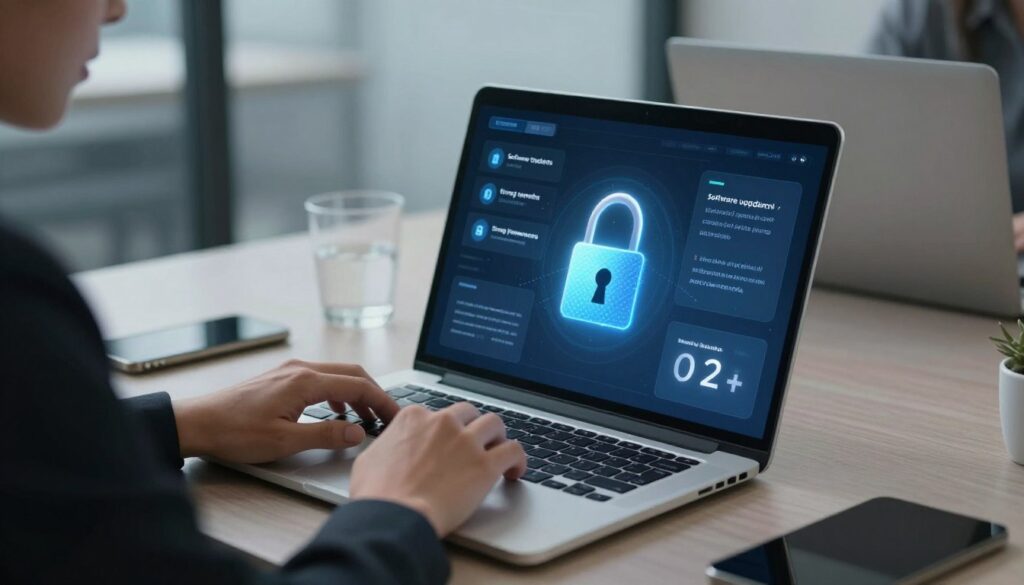
Regular updates on your devices are the simplest way to block known exploits. Prompt patches for the device OS, browser, and router firmware close flaws attackers target.
Keep OS, browsers, firmware, and security software up to date
Turn on automatic updates in your device settings so critical fixes install fast. Update apps and firmware to refresh encryption libraries and network components.
Create strong, unique passwords and enable two‑factor authentication
Use long passphrases or random strings and a manager to store them. Enable 2FA on important accounts so a stolen password alone won’t grant access.
Use reputable antivirus/anti‑malware for real‑time protection
Install well‑known antivirus on all devices to detect malware and block suspicious activity. Run scans after any session that may have exposed your data.
| Measure | Why it matters | What to do |
|---|---|---|
| OS & browser updates | Close known exploits | Enable auto‑update, install immediately |
| Passwords & 2FA | Stops credential reuse | Use manager, enable 2FA for accounts |
| Firmware & encryption | Protects network components | Update router firmware, verify encryption |
| Antivirus | Detects malware in real time | Install reputable software and scan regularly |
“Keep devices current and use 2FA — small steps that protect your information and data.”
Advanced safeguards for safer public -fi and hotspot use
When venue networks feel unreliable, prefer your carrier or a personal hotspot to keep tasks private. Using cellular data or a phone hotspot reduces exposure compared with unknown shared access points.
Use your mobile carrier or personal hotspot when networks are risky
If you can’t trust a venue’s -fi network, tether to your phone. A personal hotspot becomes a controlled private network for quick work or urgent logins.
Combine that hotspot with a trusted vpn to add a virtual private layer. This protects the connection end to end even when the venue claims encryption.
Harden device settings: forget old SSIDs and manage auto-join
Do not let your device auto-join remembered networks. Attackers rebroadcast common names, like airport SSIDs, to trick devices into connecting.
- Regularly purge old SSIDs from your device list to prevent silent reconnections.
- Keep Wi‑Fi off when moving between places so your device won’t probe for networks unnecessarily.
- Favor a locked -fi network with a shared password over an open splash page when you must connect.
Tip: Maintain a travel user profile on laptops and use the phone’s hotspot for sensitive tasks to reduce what’s exposed on the road.
Spotting unsafe networks in the wild
When you hunt for an internet signal in a busy spot, the wrong network can look harmless. A quick check of the name and behaviour of the network helps you avoid easy traps.
Duplicate or generic SSIDs like “Free -Fi”
Be cautious when you see a familiar name with a tiny change. Attackers mirror hotel or cafe -fi names to trick you.
Generic labels such as “Free -fi” are classic lures. In coffee shops, ask staff to confirm the official name before you join.
HTTPS pages loading as HTTP, pop‑ups, slowdowns, and frequent drops
If a page that should be HTTPS opens as HTTP, treat the network as hostile and leave before entering credentials or bank details. Unexpected pop‑ups, ad injections, frequent drops, or sluggish performance can mean tampering.
- Never do bank logins or payments on a questionable network; wait for a trusted connection.
- If you detect tampering, disconnect, forget the network, and run a malware scan.
- When several -fi networks show similar names, confirm the official option from a posted sign or staff.
- Watch for certificate warnings and do not click through them—these are hard stops.
“Assume higher risk in crowded spots—verify the network name and leave if anything looks off.”
Conclusion
A reliable routine is your best defense when you use shared internet on the move.
Verify the venue’s official network name, check the browser padlock, and avoid entering bank or login credentials on anything that looks odd.
Use a trusted vpn, keep your device software updated, and run reputable antivirus to reduce risk from malware or snooping.
Disable auto-join, forget old SSIDs, and limit how much data you send over unknown connections. If a page downgrades from HTTPS or shows pop-ups, disconnect immediately.
When in doubt, switch to your mobile carrier or a personal hotspot. By repeating these simple checks every time, you protect your devices, passwords, and sensitive information without slowing your work.
FAQ
Why should I worry about using networks at airports, coffee shops, or hotels?
These shared connections often lack strong encryption, so others on the same network can intercept unprotected traffic. Attackers can capture login credentials, read emails, or inject malware. You should assume the connection is untrusted and take precautions like using a VPN and avoiding sensitive accounts.
What can attackers see if I don’t protect my device on an open hotspot?
Without protections, someone can view unencrypted web pages, steal session cookies, capture form data, and monitor app traffic. That lets them access accounts, view messages, or collect passwords and banking details unless you use encrypted channels such as HTTPS or a virtual private network.
What is an “evil twin” network and how do I avoid it?
An evil twin is a fake hotspot that mimics a legitimate SSID to trick you into connecting. Check network names carefully, confirm the correct SSID with staff, avoid generic names like “Free Wi‑Fi,” and use your device’s known-hardware or personal hotspot when in doubt.
How does a man‑in‑the‑middle attack work on public connections?
In this attack, an adversary intercepts traffic between you and a website or service. They can eavesdrop, alter data, or hijack sessions. Using a trusted VPN and sites with HTTPS prevents attackers from reading or tampering with your data.
Is it enough to rely on HTTPS when browsing on shared networks?
HTTPS protects web traffic, but not all apps use it correctly. Combine HTTPS with a reputable VPN and browser security extensions for extra protection. Also watch for HTTPS pages downgrading to HTTP or browser warnings about certificates.
Should I access my bank or work accounts while connected to a hotspot?
Avoid logging into banking or sensitive work services unless you’re on a secured connection like your mobile carrier’s data or a VPN. If you must, enable two‑factor authentication and verify the site’s certificate before entering credentials.
How does a VPN help when you’re using a hotspot?
A VPN encrypts your device’s internet traffic and routes it through a secure server, preventing others on the local network from reading or intercepting your data. Choose a trustworthy provider that uses strong encryption and a no‑logs policy.
What device settings should I change to reduce risk on shared networks?
Turn off automatic network joining, disable file and printer sharing, and forget networks you no longer use. Keep Wi‑Fi and Bluetooth off when not needed to prevent accidental connections and exposure.
How often should I update my operating system and security software?
Update as soon as patches are available. Timely updates fix vulnerabilities that attackers exploit on public connections. Enable automatic updates for your OS, browsers, firmware, and security apps when possible.
Can antivirus or anti‑malware software protect me on a hotspot?
Yes. Reputable security software adds a layer of protection by detecting malware, blocking malicious sites, and monitoring suspicious activity. Use real‑time protection and keep definitions current to improve defense on shared networks.
Is using my mobile carrier’s hotspot safer than public access points?
Generally, yes. Personal hotspots use your carrier’s encrypted mobile data, which is harder for local attackers to intercept. If you need internet for sensitive tasks, prefer your phone’s hotspot or tethering over unknown public networks.
What signs indicate a network might be unsafe?
Look for duplicate or overly generic SSIDs, pages that redirect from HTTPS to HTTP, frequent connection drops, unexpected pop‑ups asking for credentials, and unusually slow speeds. When you see these, disconnect and use a safer option.
After using a shared network, what cleanup steps should I take?
Log out of accounts, clear your browser cookies and cache, forget the network in your device settings, and review recent account activity for suspicious access. Change any passwords if you suspect compromise and run a security scan.
What password and authentication practices protect you most when away from home?
Use unique, strong passwords for each account and enable two‑factor authentication wherever available. Password managers can generate and store complex passwords so you don’t reuse credentials across sites that could be exposed on public networks.