Surprising fact: over 50% of Italians report a digital fraud attempt each year, showing how real online risks are for everyday users.
This guide gives you plain-English steps to guard your data and devices without a tech degree.
You will learn how simple tools like firewalls, encryption, and antivirus fit together to defend your network and systems.
These measures protect your information from stolen logins, extortion, and service disruption.
Security is also about habits. Recognizing suspicious messages, using strong authentication, and updating apps are quick wins that reduce threats fast.
What you get: clear actions to secure accounts, safer browsing and payments, plus a plan to improve protection over time.
Key Takeaways
- You’ll understand core protections that keep your data safe.
- Simple habits often block the most common threats.
- Firewalls, encryption, and antivirus work together to secure systems and networks.
- Focus on easy, high-impact steps first for better protection.
- Your awareness as a user is one of the strongest defenses.
- This guide shows where to start and how to build confidence over time.
What You’ll Learn in This Beginner’s Guide
You’ll get clear, step-by-step advice to lock down access, protect information, and reduce common online threats.
This guide explains major threats like malware (viruses, Trojans, spyware, ransomware), phishing and smishing, DDoS, SQL/NoSQL injection, MITM, zero‑day exploits, and APTs. It also covers the core principles of information, application, network, and operational security so you understand where risks come from.
Practical defenses include strong passwords, two‑factor authentication, timely updates and patches, antivirus and anti‑malware, safe app sources, VPN use on public Wi‑Fi, application whitelisting, cloud account hardening, backups, IoT hardening, and a simple incident response plan.
- You will learn best practices that keep accounts, devices, and data safer day to day.
- You will spot common threats before you click and control access to your applications and services.
- You will get clear steps for passwords, 2FA options, safe app choices, secure Wi‑Fi, and cloud backups.
- You will be ready to respond calmly if something goes wrong to limit damage and restore protection fast.
Cybersecurity Basics Explained in Plain Language
Protecting your digital life is about making sure devices, accounts, and data only do what you expect them to.
What this protection means for your devices, data, and accounts
Think of protection as a set of rules and tools that stop strangers from reading, changing, or stealing your information.
It covers phones, laptops, servers, cloud services, and the apps you use. Good habits—like timely updates and careful app choices—reduce risk fast.
The difference between information security, network security, and application security
Information security focuses on confidentiality, integrity, and availability of your information. Encryption and access controls keep data safe at rest and in transit.
Network security uses firewalls, intrusion detection, VPNs, and segmentation to block intruders and protect connections.
Application security starts with secure design and coding. Regular updates, app firewalls, and testing remove weak spots so apps handle information safely.
- Operational processes—how you share files or make backups—affect overall protection.
- Authentication verifies identity before granting access to a service or system.
- Securing one layer helps the others because apps use networks to move data between systems.
Simple rule: map a risk to the right layer and fix the weakest point first—often user choices like permissions and update timing.
Recognize Today’s Most Common Cyber Threats
Knowing how threats behave helps you stop many attacks before they start.
Malware, ransomware, spyware, adware, Trojans, and keyloggers
Malware includes viruses, Trojans, spyware, adware, ransomware, and keyloggers.
Ransomware encrypts files and demands payment; offline, versioned backups are your best recovery tool.
Spyware and keyloggers quietly steal credentials and financial data. Watch for sudden pop‑ups, slow devices, unauthorized changes, or missing files.
Phishing, smishing, spoofing, and social engineering tactics
Phishing and smishing impersonate trusted brands to trick you into revealing credentials or paying money.
Spoofing fakes email, caller ID, or domains so hackers bypass trust. Check sender domains, avoid urgent requests, and never share passwords by message.
DDoS, SQL/NoSQL injection, MITM, zero‑days, and APTs
DDoS floods services to deny access even when your data stays intact. SQL/NoSQL injection exploits weak web input to leak data.
MITM intercepts traffic over insecure Wi‑Fi or weak encryption. Zero‑day attacks use unknown vulnerabilities; APTs stay hidden to steal information over time.
“Simple vigilance — careful links, backups, and updates — removes most common avenues for attackers.”
- You will spot malware by unusual behavior, pop‑ups, or data loss.
- You will learn to identify phishing by mismatched domains and urgent credential requests.
- You will understand network and web attacks like SQL injection and MITM and why updates reduce exposure.
| Threat Type | Primary Risk | Common Sign | Quick Defense |
|---|---|---|---|
| Malware / Ransomware | File loss, encryption | Locked files, ransom note | Backups, antivirus, updates |
| Phishing / Smishing | Credential theft | Mismatched sender, urgency | Verify links, MFA |
| MITM / DDoS | Intercepted traffic / downtime | Unsecure Wi‑Fi, service outage | Avoid open networks, use VPN |
| Injection / APTs | Data exfiltration, stealth theft | Unexpected queries, slow systems | Input validation, monitoring |
Strong Passwords and a Password Manager You’ll Actually Use
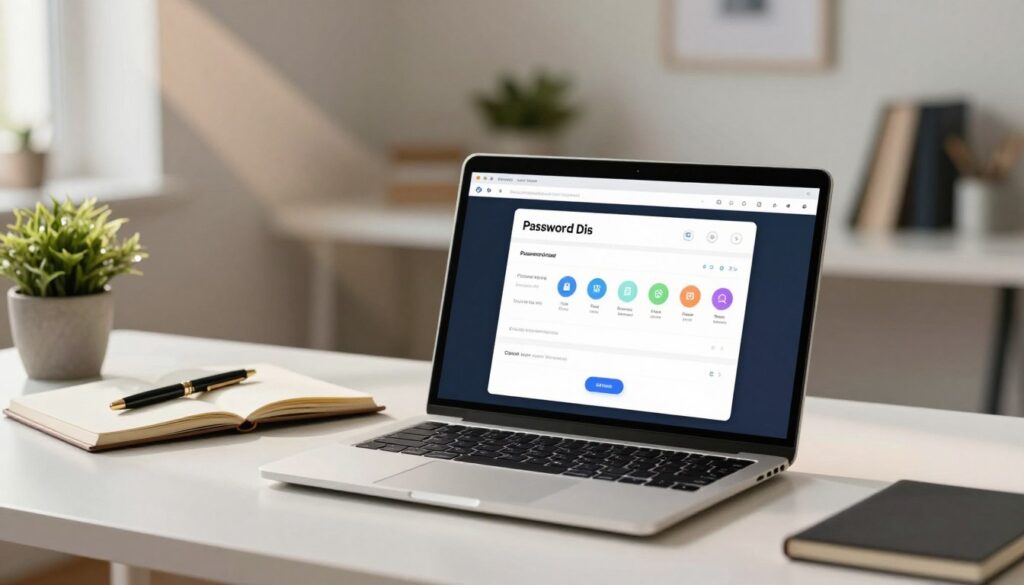
A reliable password manager makes creating and storing complex credentials simple, so you avoid reusing the same keys across accounts. Use a single strong master password to unlock an encrypted database that holds your logins and generates random passphrases for each site.
Make unique, strong credentials without memorizing them
Create long, random passphrases or let the built‑in generator produce them for you. Strong passwords avoid common words and patterns. Rotate a password after a breach alert, if you spot odd activity, or when access was shared.
Why a password manager beats spreadsheets and notes apps
Encrypted storage keeps your information protected from casual theft. Unlike a spreadsheet or a notes app, a trusted manager syncs securely across devices and can autofill only on verified URLs, helping you avoid phishing sites.
When to rotate and how to use extra safeguards
- Enable a strong master password and, when available, biometric unlock for convenience.
- Pair stored credentials with two‑factor authentication to strengthen authentication on critical accounts.
- Review and remove dormant entries and document emergency access for a trusted contact.
- Use the manager’s generator to produce passphrases that resist common cracking techniques.
Two-Factor Authentication: Your Simple Extra Layer
Adding a quick second verification step makes it far harder for attackers to reuse stolen credentials.
Two‑factor authentication adds a second check when you sign in. Options include authenticator apps, passkeys, hardware tokens, and SMS codes. Apps and passkeys are stronger than SMS for most accounts.
Choosing the right method
Use an authenticator app or passkeys as your primary choice. They avoid SMS interception and give better security for email, banking, and cloud storage.
Where to enable 2FA first
Start with accounts that unlock other services: your email, financial accounts, and cloud storage. Social media and shopping sites come next.
- Prefer apps or passkeys; consider hardware keys for your most sensitive accounts.
- Store recovery and backup codes securely and test account recovery before you need it.
- Use biometrics on your devices to reduce friction and speed approvals.
- Monitor sign‑in alerts and revoke unknown access quickly.
“A second factor stops attackers even when a password leaks.”
Make 2FA a routine step for new accounts. This small move raises your identity and data protection fast and keeps access safer for users in Italy and beyond.
Keep Software Current: Updates, Patches, and Safe Apps
Patching your software quickly stops many common attacks before they reach your data.
Keeping your system and applications updated closes known vulnerabilities and raises overall security for your devices.
Automatic updates for operating systems, browsers, and applications
Turn on automatic updates so fixes install as soon as they are available.
Schedule time for major upgrades and back up important data before you update to avoid disruption.
- Enable OS and browser updates to reduce exploit risk.
- Keep drivers and firmware current to close gaps beyond standard apps.
- Combine updates with antivirus and a firewall for layered protection.
Install apps from trusted stores and avoid risky APKs
Use Google Play or Apple’s App Store when possible. These stores vet many applications and limit malicious behavior.
Avoid side‑loaded APKs from unknown websites; they can collect personal data and share it with third parties.
| Source type | Trust level | Common risk | Quick action |
|---|---|---|---|
| Official app store | High | Occasional malicious update | Check reviews, update regularly |
| Sideloaded APK | Low | Hidden data collection | Avoid or scan before install |
| Legacy software | Varies | Unpatched vulnerabilities | Uninstall if unused |
| Browser extensions | Medium | Permission abuse | Review permissions often |
Make updates a habit: enable notifications, verify update sources, and remove outdated programs so your devices stay resilient over time.
Safer Connections: Private Networks, Public Wi‑Fi, and VPNs
Public Wi‑Fi can be convenient, but it often exposes your browsing and payments to unseen observers.
Using open networks in cafés or malls lets others on the same network capture traffic. Rogue access points and techniques like SSL stripping or ARP poisoning let attackers intercept logins and payment data. That is how hackers gain unauthorized access to your accounts and devices.
Use a virtual private network (VPN) when you need privacy. A VPN creates an encrypted tunnel over the Internet so others cannot see who you are, what sites you visit, or what data you send. This improves protection for web sessions and mobile use.
Practical habits you can follow:
- Avoid entering passwords or payment details on open Wi‑Fi.
- Verify the exact network name with staff to avoid fake hotspots.
- Set devices to forget open networks and disable auto‑join.
- Prefer your mobile hotspot for sensitive tasks if a trusted private network is unavailable.
- Check the HTTPS lock and avoid sites with certificate warnings.
- Update router firmware, change default admin credentials, and segment guest Wi‑Fi from main systems.
“A little caution on public Wi‑Fi plus a good VPN greatly reduces the chance of data theft.”
Spot and Stop Phishing Before You Click

Phishing tricks aim to make you act fast and hand over passwords or money to a fake sender.
Recognize common red flags: spoofed domains, urgent language, and unexpected attachments often signal malicious intent.
Red flags: spoofed domains, urgency, and attachments
Look closely at sender addresses and URLs. Homograph attacks and tiny misspellings can mimic big brands to steal your login or payment details.
Attachments and enabled macros may drop malware. If a message urges you to act now, treat it with suspicion.
Verifying senders and links safely
Preview links before clicking and type the address into your browser or use a saved bookmark. This keeps you from landing on a cloned site that captures credentials.
Verify requests by contacting the institution through a known phone number or official site. Never give passwords or payment details by reply or SMS.
- You will spot subtle misspellings that expose fake sites.
- You will ignore pressure tactics and pause before responding.
- You will avoid unexpected attachments and disable macros.
- You will report suspicious emails to help protect other users.
- You will learn how social engineering and brand impersonation work together to bypass your guard.
“Pause first: a moment of doubt is often the best defense against online fraud.”
| Signal | What it means | Risk | Quick action |
|---|---|---|---|
| Spoofed domain | Sender uses a lookalike URL | Credential theft | Type site manually, check SSL |
| Urgent request | Pressure to act now | Impulse payments or resets | Verify via known contact |
| Unexpected attachment | File or macro included | Malware install | Do not open; scan offline |
| SMS or phone follow-up | Smishing or voice spoof | Account takeover | Call official number, not reply |
Malware Defense: Antivirus, Anti‑Malware, and Safe Browsing
Protecting your system starts with tools that watch activity, quarantine threats, and let you run only trusted apps.
Antivirus and anti‑malware scan for viruses, worms, Trojans, and ransomware. Enable real‑time protection so threats are blocked as they try to execute on your system. Schedule on‑demand scans and check quarantine results to remove persistent malicious software safely.
Use behavioral detection as well as signatures. Behavioral tools spot suspicious activity even when a new strain lacks a known signature. Back up important data before major cleanups so you can recover if removal affects files.
Application whitelisting and browser hygiene
Application whitelisting lets only vetted applications run. This reduces the chance that unknown software causes harm. Separate admin and daily user accounts so malware cannot easily escalate privileges.
- Enable safe browsing settings and DNS filtering to block known malicious sites.
- Audit browser extensions: remove unused add‑ons and keep trusted ones updated to close vulnerabilities.
- Download installers from official sources and verify digital signatures when possible.
- Combine layered defenses—endpoint tools, whitelisting, and safe browsing—for stronger everyday protection.
“Layered tools and simple habits stop most threats before they touch your data.”
Protect Your Personal and Sensitive Information
Attackers prize a few key pieces of personal information that let them impersonate you or drain your accounts.
PII basics: what data is most valuable to attackers
Personally identifiable information includes names, email addresses, Social Security numbers, dates of birth, and financial details that uniquely point to you.
These items let criminals open accounts, reset passwords, or commit fraud in your name. Treat identity documents and financial numbers as high risk.
Data minimization, encryption, and secure sharing practices
Limit what you store. Only keep the data needed for a service and delete or archive the rest.
Use encryption to protect files at rest and in transit. Encryption turns readable information into ciphertext so only authorized parties can view it.
Share documents with password‑protected links or secure file services. Avoid sending identity papers over plain email.
- Lock privacy settings on social accounts to reduce what others see.
- Use strong answers for security questions; avoid obvious facts.
- Revoke third‑party app access you no longer use and enable alerts for unusual access.
| Risk | Why it matters | Quick step |
|---|---|---|
| Identity documents | Direct access to formal ID and loans | Store offline or encrypt before sharing |
| Emails & DOB | Account recovery and social engineering | Hide from public profiles; limit exposure |
| Financial details | Direct fraud or unauthorized charges | Use payment services and avoid plain transfers |
“Minimize what you keep, encrypt what you keep, and monitor who can access it.”
Endpoint Security for Every Device You Use
You need clear steps to protect each phone, laptop, and tablet you use so your information stays private and your accounts stay under your control.
Firewalls, device encryption, and screen lock best practices
Enable device encryption on laptops and phones. If hardware is lost or stolen, encrypted drives keep your data unreadable to others.
Use a firewall to block unsolicited inbound connections and limit which services can talk over your network and system.
Set a strong screen lock and short auto‑lock intervals. This reduces the window for unwanted access when a device is unattended.
BYOD considerations and separating work from personal activity
Bring‑Your‑Own‑Device (BYOD) needs rules. Apply least‑privilege access and avoid using admin accounts for daily tasks. Use separate profiles or browsers to keep work files apart from personal browsing.
- Keep endpoints patched and remove unsupported devices that no longer get updates.
- Turn on device‑finding and remote‑wipe to protect information if a device goes missing.
- Do not store work files on unmanaged devices; use secure company services instead.
- Review saved Wi‑Fi networks and remove any unknown profiles.
“Small settings—encryption, firewalls, and short auto‑lock—stop most casual thieves and limit damage from lost hardware.”
| Control | Why it matters | Quick action |
|---|---|---|
| Encryption | Protects files if device is lost | Enable OS disk and phone encryption |
| Firewall | Stops unsolicited network access | Restrict inbound ports and apps |
| Updates & IPS | Closes known system vulnerabilities | Enable auto‑updates and endpoint IPS |
| Access controls | Reduces insider and device risks | MFA, least privilege, and monitoring |
Application Security for Everyday Users
Apps run your day-to-day services, but flawed software can expose your accounts and files.
Application security is about preventing your data or code from being stolen or altered. Even if you don’t write code, your choices—what you install, permit, and update—shape how exposed your device is.
Why secure coding matters even if you don’t code
Poor code creates vulnerabilities that attackers exploit. Reputable vendors fix bugs quickly, while abandoned apps keep risks open.
Application whitelisting and sandboxing limit damage by running only approved applications and isolating their access to data.
Updates, permissions, and recognizing risky app behavior
Check app permissions and deny access that is not essential. Watch for excessive background activity or unusual data collection.
- You will prefer software from known publishers with fast security fixes.
- Update apps promptly and remove those with persistent vulnerabilities.
- Avoid sideloading; use curated stores to reduce risk.
- Use app store reviews and security notices to gauge trust before installing new applications.
“Small practices—careful installs, timely updates, and tight permissions—keep application risk under control.”
Cloud Accounts and Backups Done Right
A few configuration choices make cloud services much safer for your photos, documents, and settings.
Secure your cloud storage by enabling strong passwords and multi‑factor authentication on every account. Use providers like AWS, Azure, or Google Cloud only after verifying account permissions and compliance settings. Grant the least privilege needed and split personal from shared folders to reduce accidental exposure.
Securing cloud storage with access controls and MFA
Turn on MFA and require it for admin actions. Configure granular access roles so people see only the files they need.
Encrypt sensitive information before upload and confirm the service also protects data at rest. Keep activity logs and review unusual sign‑ins or file changes.
Backup strategy: versions, offline copies, and ransomware resilience
Enable versioning so you can roll back files that malware or user error changed. Maintain at least one offline or immutable copy that ransomware cannot alter.
Test your restore process on a regular schedule and document the process and cadence. Verify backups cover documents, photos, and critical configuration data across your systems and services.
“Enable MFA, turn on versioning, and keep an offline copy — that three-step process prevents most cloud data loss.”
- Enable strong passwords and MFA for cloud access.
- Use least‑privilege sharing and separate personal from shared spaces.
- Turn on versioning and keep an immutable offline backup.
- Encrypt sensitive files before uploading and monitor activity logs.
- Schedule and test restores, and document your backup process.
Smart Home and IoT: Lock Down Your Network
Small changes to how you set up smart gear make a big difference for home protection. Follow a short process to reduce exposure and keep your personal data safer. Treat each device as a potential entry point and stop easy compromises before they start.
Change defaults, update firmware, and isolate devices
Change default passwords on routers, cameras, and smart plugs right away. Many devices ship with weak credentials that attackers scan for.
Keep firmware and software up to date so manufacturers patch known vulnerabilities. Regular updates close common holes before an attacker finds them.
Put smart devices on a separate SSID or VLAN. Network segmentation limits lateral movement so a compromised gadget cannot reach your main devices or data.
Reduce the attack surface: disable unused services and ports
Turn off UPnP and any services you do not use. Close unused ports and remove apps that request too much access.
- You will prefer brands that publish security advisories and provide timely fixes.
- You will remove or replace unsupported devices that no longer receive updates.
- You will limit telemetry and data sharing settings to reduce exposure of personal habits.
- You will monitor unusual traffic from devices for signs of botnet or other attack activity.
- You will document your network layout so you can troubleshoot and keep segmentation intact.
“Device authentication, encryption, firmware updates, and segmentation are simple steps that greatly lower home network risk.”
If Something Goes Wrong: Simple Incident Response Steps
When an incident occurs, a clear, calm process helps you stop damage and recover quickly. Detecting the issue and isolating affected machines is the first priority.
Disconnect, scan, reset passwords, and enable 2FA fast
Disconnect affected systems from the network to halt data loss or further access.
Scan with updated antivirus and anti‑malware tools and follow quarantine guidance. Restore from clean backups only after you confirm systems are free of threats.
Reset passwords for impacted accounts and enable multi‑factor authentication to block repeat access. Review recent activity and revoke unknown sessions.
When to contact your bank, service provider, or local authorities
If payments or account changes look suspicious, contact your bank and card issuers immediately. Notify service providers so they can lock accounts and inspect access logs.
File reports with local authorities for identity theft, extortion, or significant fraud. Document the timeline and actions taken to improve your future response process.
“Act promptly, document everything, and restore only after you know systems are clean.”
| Action | Why it matters | Quick step |
|---|---|---|
| Isolate systems | Stops ongoing data exfiltration | Disconnect network, power down if needed |
| Scan & clean | Removes malware and confirms safety | Use updated tools, quarantine threats |
| Reset credentials | Blocks attacker access | Change passwords, enable 2FA |
| Contact services | Protect accounts and payments | Notify bank, provider; check logs |
Cybersecurity Trends in the Present: AI, Deepfakes, and Zero Trust
AI tools now spot subtle patterns in user activity that humans often miss.
AI and machine learning enhance detection and response by learning normal activity and flagging anomalies. Modern SIEM platforms combine analytics with AI/ML to correlate events across services and surface real incidents fast.
Deepfakes make social engineering far more convincing. Scammers may use fake voices or videos to bypass trust. Verify identities out‑of‑band and treat unexpected requests with caution.
Ransomware and double extortion are rising. Strong authentication, versioned backups, and tested recovery plans remain your best defenses.
What to watch and what to do
- AI tools analyze activity patterns to detect threats faster than manual review.
- AI‑enriched SIEM reduces false alarms and speeds incident response.
- Deepfakes increase the need to verify requests off channel to stop social engineering.
- Zero Trust treats every access attempt as untrusted and verifies context before granting access.
- IoT growth widens the attack surface; segment devices and update firmware regularly.
“Continuous verification and layered defenses help you stay ahead as attacks become smarter.”
| Trend | Primary risk | Action | Benefit |
|---|---|---|---|
| AI & SIEM | Missed incidents, alert fatigue | Deploy AI‑enriched monitoring, tune alerts | Faster, focused response |
| Deepfakes | Convincing fraud via voice/video | Verify identity out‑of‑band, train staff | Less successful social engineering |
| Ransomware & IoT | Data loss, device compromise | Segment network, keep backups, patch devices | Resilient recovery and reduced spread |
Conclusion
Use a layered approach—people, tools, and processes—to make it harder for attackers to reach your information.
Follow clear best practices and simple cybersecurity measures: strong passwords, a password manager, two‑factor authentication, regular software updates, and endpoint protection. These actions reduce the chance someone will gain unauthorized access to your accounts or devices.
Use a VPN on public Wi‑Fi and prefer your private network for sensitive work. Back up data with versioning and an offline copy so you can recover from malware or ransomware quickly.
Limit what you share, review app permissions, and monitor account activity for early signs of trouble. Keep learning these cybersecurity basics and make this process part of your daily routine.
FAQ
What does “cybersecurity” mean for your devices, data, and accounts?
It means protecting your devices, accounts, and personal information from unauthorized access, malware, and fraud. You do this by keeping software updated, using strong unique passwords, enabling multi-factor authentication, and installing reputable security tools like antivirus and endpoint protection. These steps help guard your identity, financial data, and private files from attackers.
How is information security different from network security and application security?
Information security focuses on protecting data itself—its confidentiality, integrity, and availability. Network security defends the systems and traffic that move data, using firewalls, VPNs, and intrusion detection. Application security hardens software by fixing code flaws, managing permissions, and applying updates so apps don’t become entry points for attackers.
What are the most common types of malware and how do they differ?
Malware varieties include viruses and Trojans that execute malicious code, ransomware that encrypts your files and demands payment, spyware and keyloggers that steal information, and adware that injects unwanted ads. Each uses different attack methods, but all aim to compromise your device, data, or privacy.
How can you recognize phishing, smishing, and other social engineering attempts?
Look for urgent requests, misspelled sender addresses, spoofed domains, unusual attachments, or links that don’t match the claimed sender. SMS-based attacks (smishing) use similar tricks. If a message pressures you to act quickly or asks for credentials or money, verify the sender by calling the organization or checking official sites before responding.
How do you create strong passwords without reusing them?
Use a password manager to generate and store long, random passwords for each account. If you prefer manual methods, combine unrelated words, numbers, and punctuation into phrases at least 12 characters long. Avoid personal data and common patterns. A manager keeps passwords unique and reduces the burden of memorization.
Why is a password manager better than spreadsheets or notes apps?
Password managers like 1Password, Bitwarden, and LastPass encrypt credentials and offer secure autofill, 2FA integration, and breach alerts. Spreadsheets or note apps lack strong encryption and are easy to expose if your device or cloud account is compromised. A dedicated manager reduces risk and improves password hygiene.
Which 2FA method should you choose: authenticator app, passkeys, or SMS?
Authenticator apps (Google Authenticator, Authy) and passkeys are more secure than SMS. Authenticator apps produce time-based codes that are hard for attackers to intercept. Passkeys (platform-based cryptographic login) remove passwords entirely when supported. Use SMS only as a last resort due to SIM-swap risks.
Where should you enable two-factor authentication first?
Start with your email, password manager, banking and financial accounts, and cloud storage (Google Drive, Microsoft OneDrive, Dropbox). These services control access to many other accounts and contain sensitive data, so protecting them first yields the biggest security benefit.
How often should you install updates and patches?
Enable automatic updates for your operating system, browsers, and key applications to receive security patches promptly. For systems that can’t auto-update, check for patches at least weekly and apply critical fixes immediately to reduce exposure to known vulnerabilities.
Is it safe to install apps from third-party sites or APKs?
No. Installing apps from trusted stores like Google Play and Apple App Store reduces risk because they perform vetting. Third-party APKs and unverified sources often carry malware or hidden permissions. If you must sideload, verify the publisher and scan the file with reputable security tools first.
What risks do open Wi‑Fi networks pose and how do hackers gain access?
Open Wi‑Fi can expose your traffic to eavesdropping, man-in-the-middle attacks, and session hijacking. Attackers may set up rogue hotspots or intercept unencrypted data. Avoid sensitive tasks on public Wi‑Fi, use HTTPS sites, and enable a VPN to encrypt your connection when you’re on untrusted networks.
How does a VPN protect your traffic and when should you use one?
A virtual private network encrypts the data between your device and the VPN server, hiding your activity from local networks and ISPs. Use a reputable VPN when on public Wi‑Fi, traveling, or accessing region-restricted services. Avoid free, untrusted VPNs that may log or sell your data.
What are common red flags that indicate a phishing email or link?
Red flags include mismatched sender domains, poor grammar, unexpected attachments, generic greetings, urgent action requests, and links that preview a different URL than they advertise. When in doubt, hover over links to see the real address and verify with the organization directly.
How can you verify a sender or link without exposing sensitive information?
Don’t click links or reply with credentials. Visit the organization’s official website directly, use known phone numbers, or log into the account through the provider’s app. Use secure sandboxes or isolated devices for suspicious files, and forward phishing attempts to the service provider for investigation.
What role do antivirus and anti‑malware tools play in defense?
They provide real‑time protection, on‑demand scanning, and quarantine for detected threats. Reputable products detect many known malware families and block malicious sites. Use them alongside safe browsing habits, app vetting, and OS updates to reduce infection risk.
How does application whitelisting improve security?
Whitelisting limits which programs can run on your device to a preapproved list. That prevents unknown or unauthorized executables from launching, reducing the chance that malware or risky apps can execute. It’s a strong control for critical systems and power users.
What personal data do attackers value most and why?
Attackers prize PII such as Social Security numbers, financial account details, login credentials, and birthdates. That data enables identity theft, account takeover, fraud, and targeted social engineering. Minimizing sharing and encrypting or deleting unnecessary records reduces risk.
What is data minimization and how do you practice it?
Data minimization means collecting and storing only the personal information you need. For you, this means avoiding oversharing on forms, deleting old accounts, and limiting what apps can access. Fewer stored data points mean less exposure if a breach occurs.
What endpoint security steps should you take for every device?
Use full‑disk encryption, enable a strong screen lock or biometric authentication, keep software updated, run reputable endpoint protection, and enable firewalls. For mobile devices, restrict app permissions and use MDM or separation techniques if you bring your own device to work.
How should you separate work and personal activity on a BYOD device?
Use distinct user profiles or separate apps and accounts for work tasks. Enable containerization or use employer‑provided MDM where available. Avoid mixing sensitive corporate credentials with personal email or social apps to reduce cross‑contamination risk.
Why does secure coding matter if you don’t write software?
Secure coding prevents vulnerabilities that attackers exploit to compromise applications you rely on. Even as a user, you benefit when developers follow secure practices, release timely patches, and limit permissions so apps behave safely and won’t leak your data.
How do you secure cloud storage and backups effectively?
Enable multi‑factor authentication, use strong unique passwords, apply access controls, and encrypt sensitive files before uploading. Maintain multiple backup versions, keep at least one offline or air‑gapped copy, and test restores regularly to ensure ransomware resilience.
What should you do to secure smart home and IoT devices?
Change default passwords, update firmware regularly, place IoT devices on a separate network segment or guest SSID, and disable unused services and ports. Limit device permissions and remove devices you no longer use to shrink your attack surface.
If you suspect an incident, what immediate steps should you take?
Disconnect the affected device from the network, run a full antivirus scan, change compromised passwords (from a safe device), enable 2FA, and check account activity. If financial data or identity theft is involved, contact your bank and relevant service providers right away.
When should you contact law enforcement or your bank?
Contact your bank immediately for fraudulent transactions or credential theft affecting accounts. Report identity theft, extortion (ransomware), or significant data breaches to local law enforcement and, when applicable, to federal agencies like the FBI’s Internet Crime Complaint Center (IC3).
What emerging threats should you watch for now?
Watch for AI‑powered phishing and deepfakes that craft believable scams, rising ransomware variants, supply‑chain attacks, and increased IoT targeting. Defenses like behavioral analytics, zero trust principles, and security information and event management (SIEM) systems help detect and respond to these trends.
How can you keep learning and stay informed about new threats and protections?
Follow reputable sources such as the Cybersecurity and Infrastructure Security Agency (CISA), Krebs on Security, and security teams from Microsoft and Google. Subscribe to vendor advisories, enable breach notifications, and take short online courses or webinars to keep your skills current.